


AEMC PEL-103: How to Download Data and Generate Simple Reports
Downloading Data
So you have recorded your power system for the past 30 days. Now what?
Now it is time to transfer the data from the PEL unit into the DataView software on your computer for review and report processing.
Although the manual for the PEL103 provides instruction for downloading the data via either the USB connection or a Bluetooth connection, we recommend pulling the SD card from the unit and inserting into your PC directly or with the external card reader provided in the kit. The process is much faster, especially for very large files.
The files retrieved from the SD card will be similar to the example below.
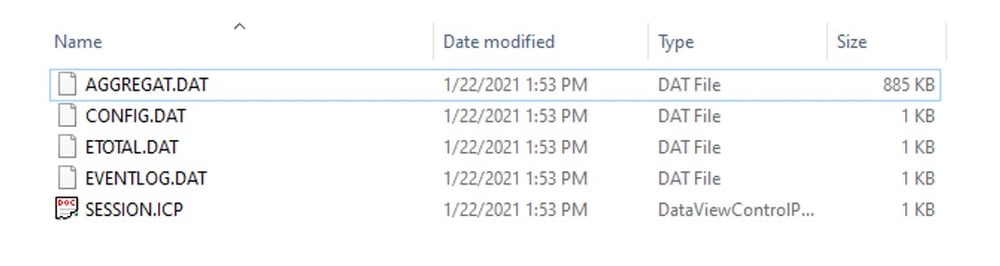 Once the data files are loaded onto your PC, with DataView installed, just double click the Session.ICP file and this will automatically open DataView and load your data into the software. You will now see your recorded information in the workstation tree under “My Open Sessions”. You are now free to review all aspects of your monitoring session by clicking on the 10 Minute Summary, Session Totals or Event Log.

Generating Simple DataView Reports
The AEMC DataView software provides an automatic report generator as part of the package. The icon for this is found on the main tool bar at the top of the page.
 Clicking the icon will open the “Select Data to Export” window. From here you will have the ability to select the starting date/time and the ending date/time that you want your report to cover. You may also choose the “Total Duration” button to report the total time the meter recorded.

This window also allows you to choose the data interval, data type and report template. Data interval setting will typically be the full summary interval unless you have chosen to record the one second trend data. If so, you may choose to show this trend on your report. The data type is checked for the data you choose to display on your report. The choices will only be available to check if they were initially recorded. The template option will let you pick from a basic report that gives the needed data for doing a demand study or the advanced report which will provide further data such as energy cost, power factor and harmonic information.
To add further detail to the header of your report click the “Open Address Book” button.
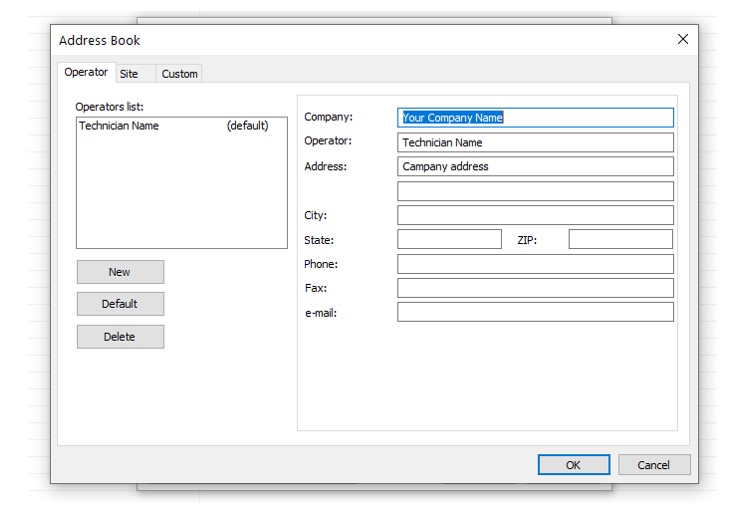
This will allow you add operator information for the company and the technician performing the work. The site tab will also let you edit the jobsite information to be added to the report.

The information may be saved and used for future monitoring sessions.
Once all your information has been updated, click the “OK” button in the “Select Data to Export” window to start the report generation.
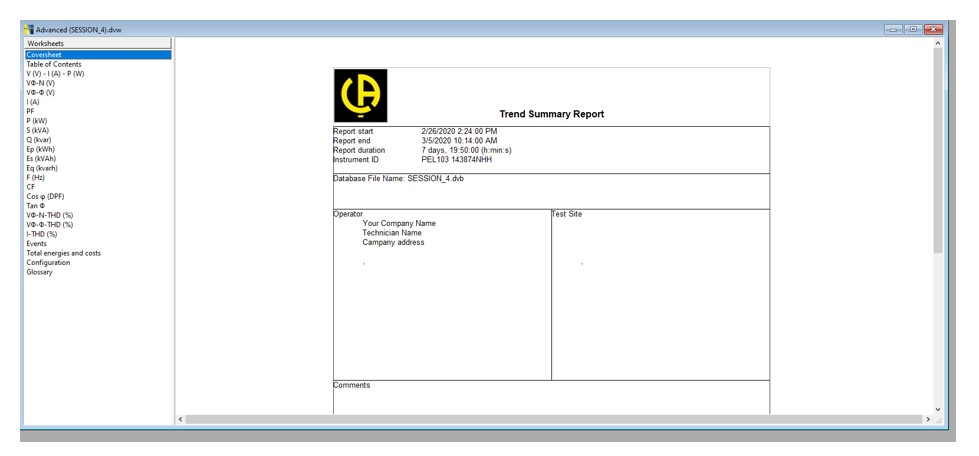 The new report can now be saved to your PC as a .DVW file. The report can be printed for a hard copy as well as saved as a PDF file to be shared on other computers.
